BOSUN placement review

See the desktop and phone layouts.

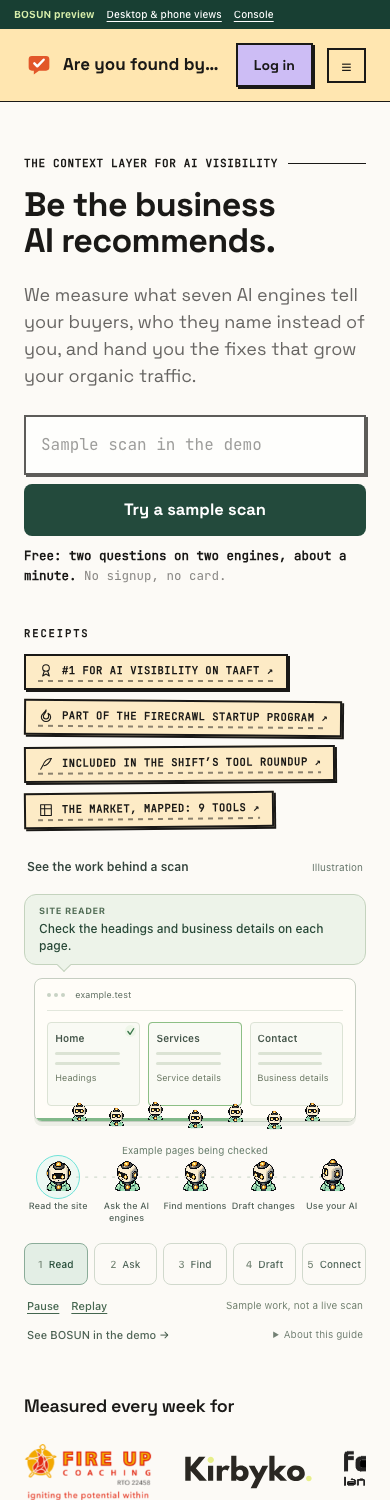
Desktop keeps the illustration beside the headline. Mobile puts the headline, scan and receipts first, then shows the work.

Desktop · 1440px
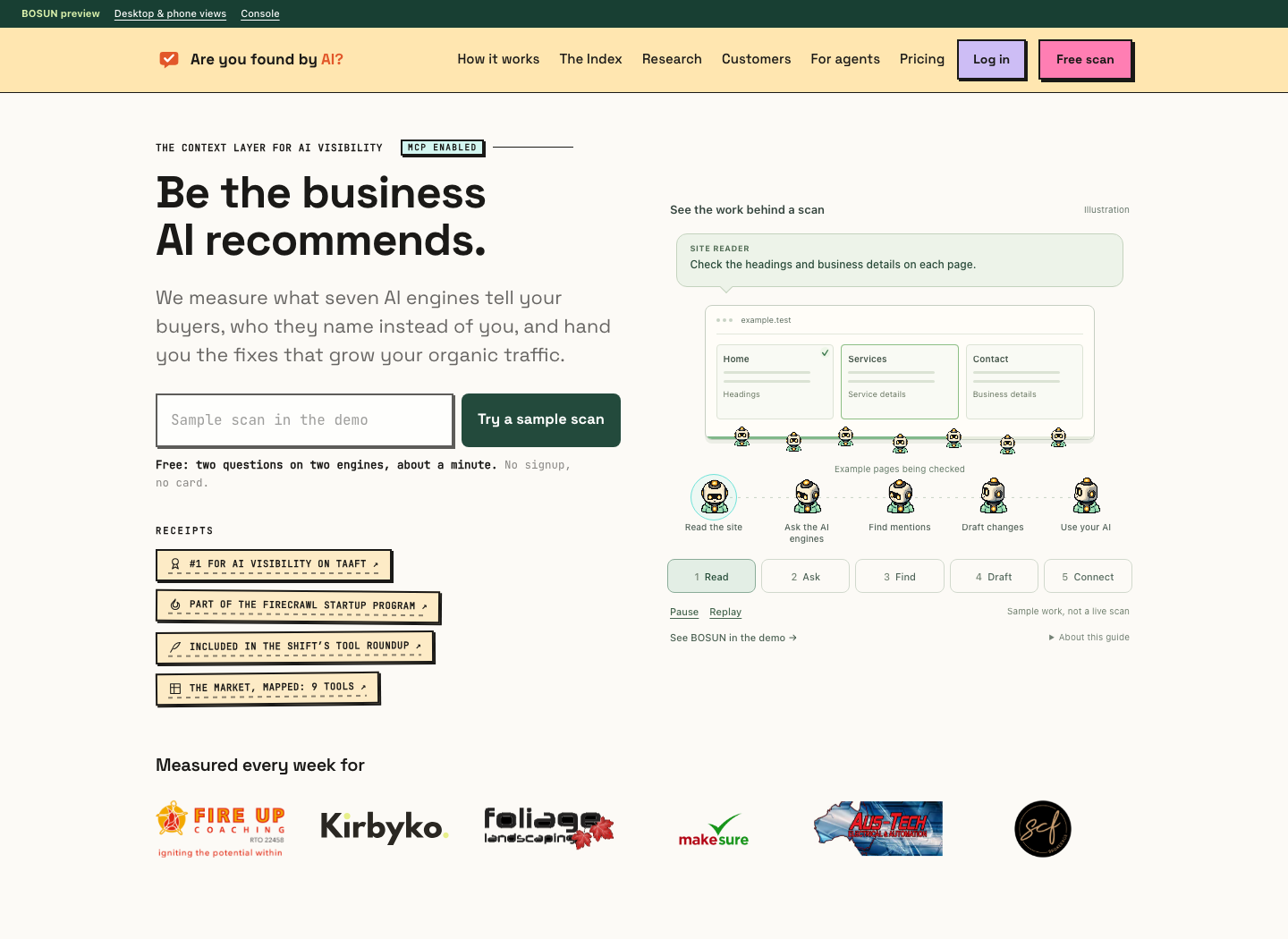
Desktop homepage with the scan on the left and the BOSUN work illustration on the right
Open the image to inspect it at full size.

Phone · 390px

Phone homepage with headline, scan and receipts above the BOSUN work illustration
The scan and receipts come before the illustration.

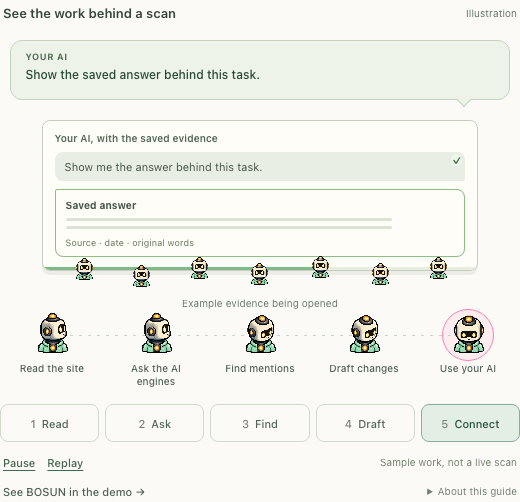
What each agent is working on

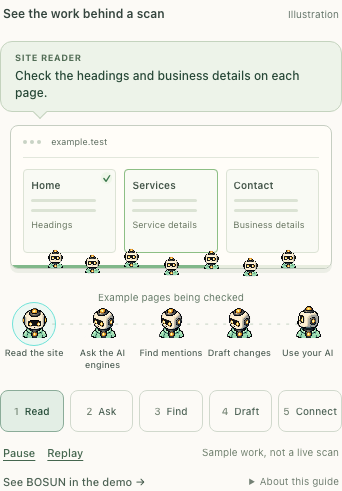
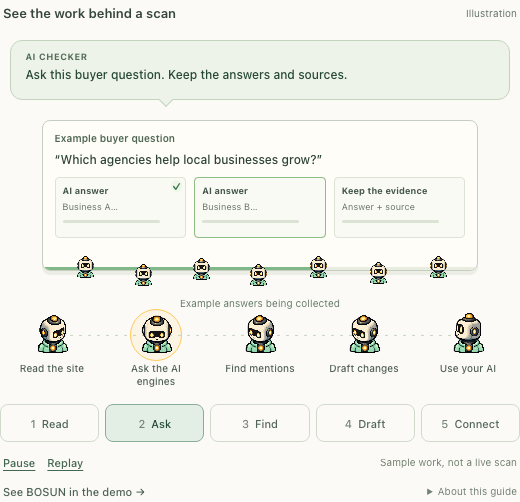
Task bubbles explain the instruction. The small helpers emerge from the active agent, work on the example, then return before the handoff. These captures hold each task halfway through.

1. Read the site
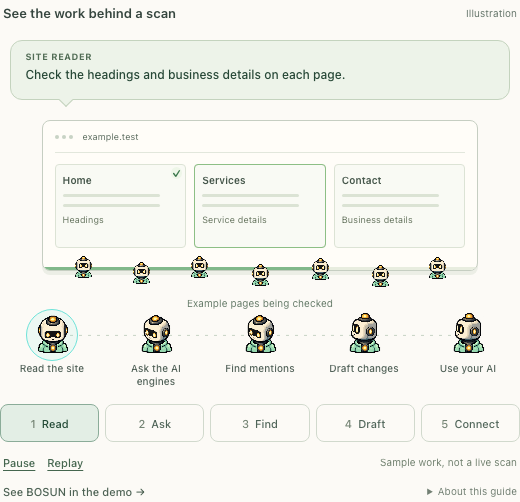
Read the site: task dialogue, example work and seven helpers
Open the phone detail

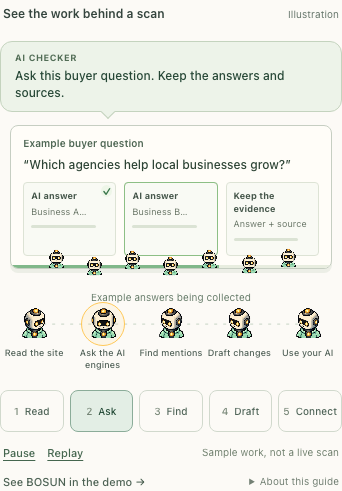
2. Ask the AI engines

Ask the AI engines: task dialogue, example work and seven helpers
Open the phone detail

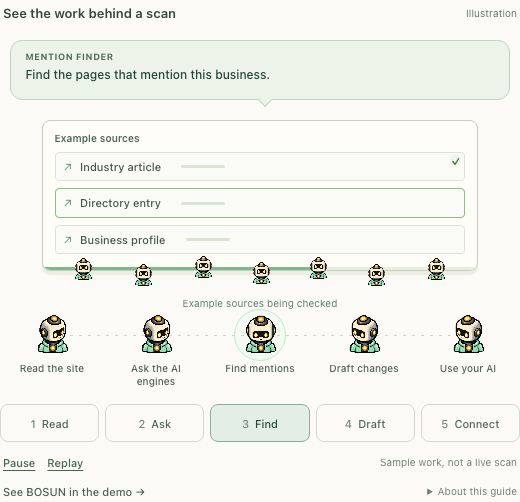
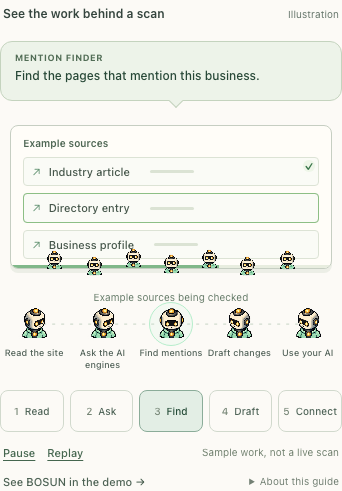
3. Find mentions

Find mentions: task dialogue, example work and seven helpers
Open the phone detail

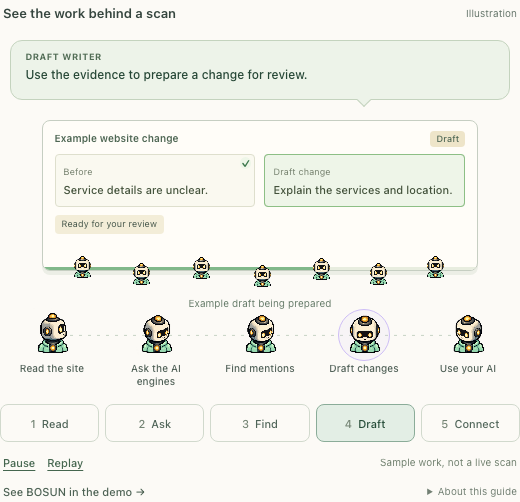
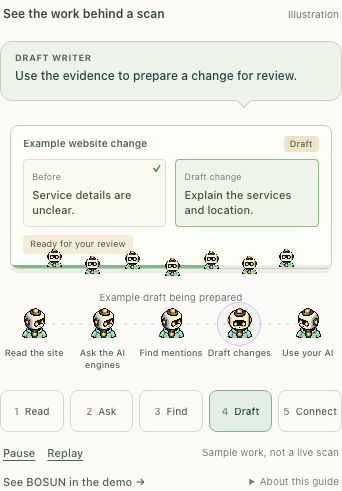
4. Draft changes

Draft changes: task dialogue, example work and seven helpers
Open the phone detail

5. Use your AI

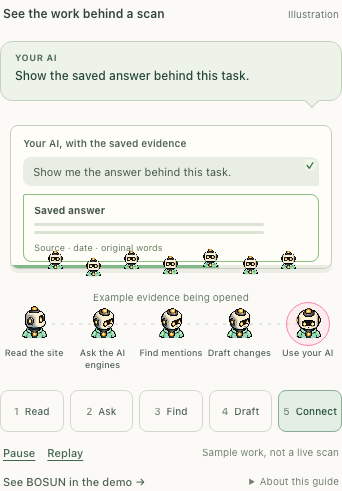
Use your AI: task dialogue, example work and seven helpers
Open the phone detail